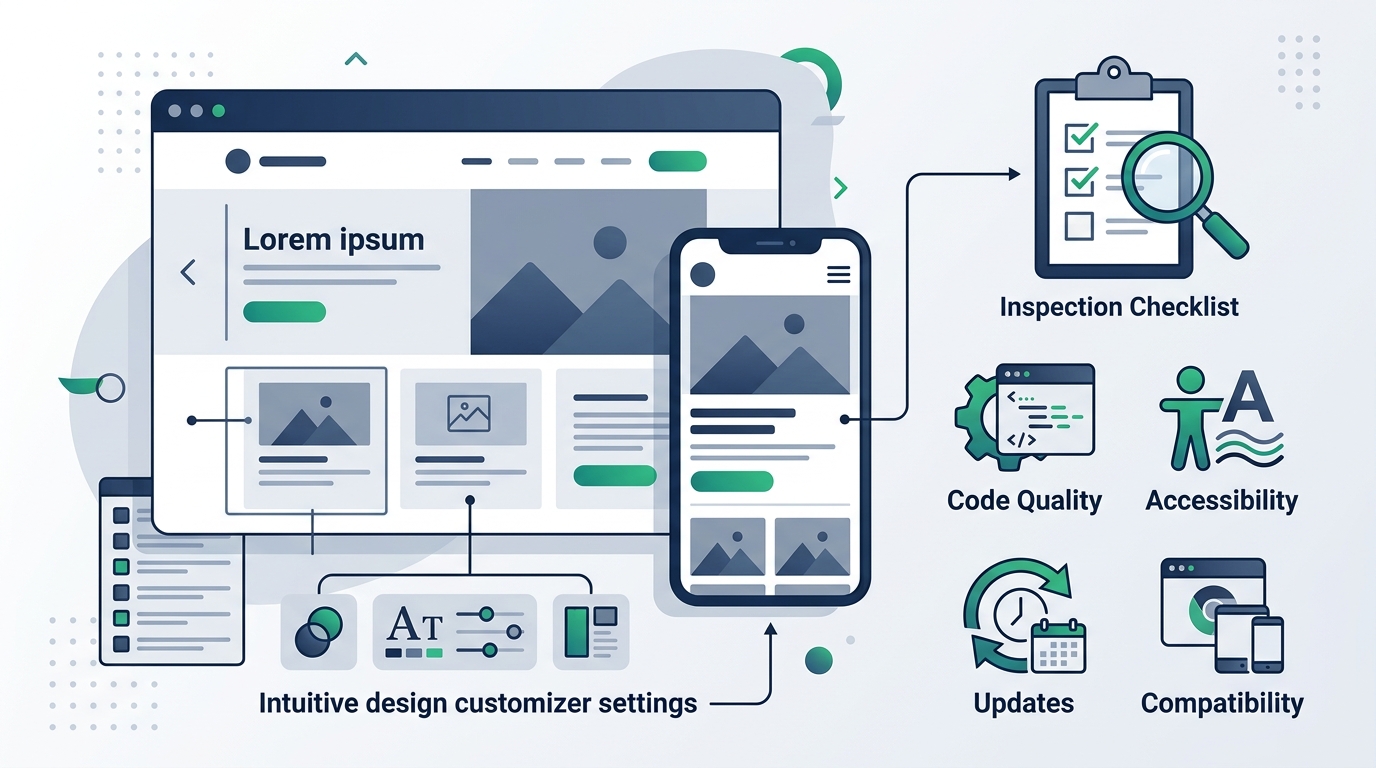
When exploring themes for a new WordPress website, it is remarkably easy to be swayed by a polished live demo. Commercial marketplaces and theme directories showcase stunning demo sites featuring high-resolution photography, smooth video headers, animated parallax containers, and intricate multi-column layouts.
However, experienced web designers understand a fundamental truth: an impressive visual demo does not automatically make a theme the right foundation for your project. In real-world operation, a WordPress theme governs far more than surface visual aesthetics. It establishes your document hierarchy, mobile responsiveness, page rendering efficiency, plugin interoperability, accessibility compliance, and long-term administrative overhead.
Choosing a theme based solely on aesthetics often leads to frustrating technical obstacles—such as sluggish page rendering, rigid layouts that resist modification, plugin conflicts, security risks, or proprietary lock-in that makes switching themes nearly impossible.
In our comprehensive guide on how to choose a WordPress theme for your website, we explored the high-level methodology of selecting a theme. In our analysis of free vs. premium WordPress themes, we examined commercial pricing models and licensing structures. This guide focuses squarely on the practical evaluation checklist: the specific features, code quality indicators, compatibility parameters, and maintenance signals you should inspect before activating a theme on your site.
Start With Your Website Requirements
The most effective evaluation begins with an honest audit of your website's operational purpose rather than browsing theme directories for visual inspiration. A theme should be chosen to serve the website's functional requirements—never the other way around. Trying to force a complex multi-purpose corporate theme into serving a simple personal blog, or attempting to bend a minimalist photography theme into an e-commerce storefront, invariably results in bloated workarounds and maintenance headaches.
Consider how core website archetypes demand fundamentally different theme architectures:
Content Blogs & Publications
Prioritize clear typography, readable line lengths, distinct heading hierarchies, customizable archive templates, author bio boxes, and related post navigation without heavy script dependencies.
Local Business & Service Portals
Require flexible header layouts for prominent contact numbers, clear call-to-action buttons, Google Maps embedding areas, team member grids, and seamless contact form integration.
WooCommerce Online Stores
Demand dedicated e-commerce templates: optimized product grids, clean single-product pages, AJAX mini-carts, mobile checkout funnels, and filter sidebar integration.
Creative Portfolios
Benefit from adaptable gallery grids, lightbox integrations, full-bleed visual showcases, and minimal distracting layout chrome that lets imagery take center stage.
Before reviewing candidate themes, write down your mandatory pages, desired header/navigation structure, and essential functional components. Evaluating themes against this predefined checklist prevents emotional decisions driven by flashy demo content.
Check the Theme's Layout and Design Options
A theme's layout architecture dictates how content flows across the screen. While visual elements like colors and fonts can be modified easily, structural layout limitations can require extensive custom programming to alter.
When inspecting a theme's design capabilities, assess the following structural controls:
- Header & Navigation Controls: Does the theme support your required menu hierarchy? Can you position the logo on the left, center, or inline? Does it support sticky navigation on scroll, transparent headers for landing pages, and accessible mobile off-canvas drawers?
- Container Widths & Spacing: Can you set global max-width constraints (e.g., 1200px vs. full-width)? Does the theme provide granular control over inner padding and section margins?
- Sidebar Configurations: Does the theme permit flexible sidebar arrangements (right sidebar, left sidebar, dual sidebars, or no sidebar) on a per-page or per-post basis?
- Archive & Blog Layouts: Are post listings available in clean lists, multi-column grids, or masonry arrangements? Can you toggle post metadata (author, publish date, category, reading time) without custom code?
- Footer Layout Flexibility: Does the footer support multi-column widget arrangements, copyright attribution edits, and secondary navigation links?
A theme should provide sufficient structural flexibility to achieve your intended design without requiring hacky CSS overrides or fragile layout workarounds.
Check Responsive and Mobile Behavior
With more than half of all global web traffic originating from smartphones and search engines enforcing mobile-first indexing, mobile responsiveness is not an optional feature—it is an absolute operational prerequisite.
A theme that merely claims to be "100% responsive" on its sales page should still be thoroughly tested across real viewports. When reviewing a theme's mobile presentation, inspect:
Mobile Navigation Usability
Does the hamburger menu toggle smoothly? Are dropdown submenus easily expandable on touchscreens? Is the close button prominent and easy to tap?
Typography & Readability
Does body text scale appropriately on small screens without requiring horizontal scrolling or awkward word wraps? Are headings proportionally scaled?
Touch Target Spacing
Are interactive elements, buttons, and form inputs large enough to be tapped accurately with a thumb without accidentally clicking adjacent links?
Mobile Table & Product Handling
How do complex tables, pricing comparisons, and WooCommerce product cards render on narrow screens? Do they collapse into readable single-column stacks?
Never rely exclusively on browser resize handles on your desktop monitor. Test candidate theme demos on actual physical smartphones and tablets to observe real-world scroll performance, touch responsiveness, and layout stability.
Check Browser and WordPress Compatibility
WordPress core software and underlying web server runtimes evolve constantly. A theme must remain fully compatible with current web infrastructure to operate securely and render consistently across diverse client environments.
Before installing or purchasing a theme, verify:
- WordPress Core Version: Does the theme documentation confirm support for the latest major release of WordPress? Themes that have not been tested against recent core releases risk encountering broken block templates or deprecated function errors.
- PHP Version Support: As documented in official WordPress server requirements, modern installations should execute on PHP 8.1 or higher. Ensure the theme author explicitly supports current PHP 8.x runtimes without triggering fatal warnings or deprecated syntax notices.
- Modern Web Browser Support: Verify that CSS grid, flexbox layouts, and interactive components render correctly across major browsers, including Chrome, Safari, Edge, and Firefox.
Check Plugin Compatibility
In a healthy WordPress architecture, there is a clear division of responsibility: the theme governs visual presentation and layout, while plugins provide functional capabilities and data management.
Before committing to a theme, verify that it integrates smoothly with the essential plugins your website requires:
- Contact Form Plugins: Does the theme style standard form elements (inputs, textareas, submit buttons, checkboxes) cleanly, or do forms look unstyled and misaligned?
- SEO & Schema Plugins: Does the theme generate clean semantic HTML markup that allows SEO plugins to output metadata and structured schema without duplicating title tags or breadcrumb hierarchies?
- Caching & Optimization Tools: Can the theme's CSS and JavaScript files be reliably minified, combined, and cached by popular performance plugins without breaking layouts or interactive scripts?
- Page Builders & Block Suites: If your workflow utilizes page builders or advanced block libraries, does the theme offer clean full-width canvas templates with header/footer toggle controls?
For vetted plugin recommendations across critical functional categories, consult our curated WordPress plugins guide.
Check WooCommerce Compatibility If You Run a Store
If your project involves commercial transactions, explicit WooCommerce compatibility is one of the most vital criteria to investigate. While WooCommerce can technically run on any WordPress theme, a theme lacking dedicated e-commerce templates will display unstyled, clunky product listings and awkward checkout pages that can damage buyer confidence.
When inspecting a theme for e-commerce readiness, review:
Product Archives & Grids
Examine product card hover states, badge placements (e.g., "Sale" or "Out of Stock"), star rating displays, and responsive column adjustments on mobile.
Single Product Pages
Verify how product galleries, variation selectors (dropdowns vs. swatches), description tabs, and related product carousels are presented.
Cart & Checkout Flow
Check whether the theme offers slide-out mini-carts and distraction-free checkout templates that remove sidebars and extraneous links to reduce cart abandonment.
Explore purpose-built e-commerce templates in our WordPress themes directory, and review our guide on what you need to build a WordPress website to ensure your hosting stack is equipped for dynamic e-commerce queries.
Look at Customization Options
Theme customization paradigms in WordPress have evolved significantly in recent years. Modern themes generally utilize one of three primary customization architectures:
- Block Themes (Full Site Editing): Built entirely around modern block templates, utilizing the native WordPress Site Editor. Headers, footers, post archives, and single-post templates are edited directly using blocks without requiring separate control panels.
- Classic & Hybrid Themes: Utilize the traditional WordPress Customizer with real-time visual previews for colors, typography, layout widths, and header layouts, combined with block editing for post content.
- Proprietary Theme Options Panels: Some complex multi-purpose themes rely on custom back-end administrative control panels to manage global styling and layout rules.
The best customization system is one that matches your technical skill level and editorial workflow. Ensure the theme provides intuitive global controls for primary brand colors, typography scales, and container spacing so that routine visual adjustments do not require editing raw CSS code.
Check Performance Without Trusting Marketing Claims
Theme sales pages frequently advertise sweeping performance claims, displaying promotional badges boasting "99% PageSpeed Scores" or "Lightning Fast 0.2s Load Times." Prospective buyers should treat these marketing claims with healthy skepticism.
In reality, a vendor's demo site is hosted on a fine-tuned, isolated server environment with aggressive caching and minimal third-party scripts. The performance you experience on your live website depends far more on your web hosting architecture, image dimensions, caching plugins, and installed extensions than on marketing promises.
Rather than relying on isolated benchmark numbers, inspect structural performance characteristics: Does the theme load vanilla JavaScript instead of heavy legacy jQuery libraries? Does it use modern system font stacks or self-hosted web fonts rather than loading multiple external Google Font weights? Does it allow you to disable non-essential bundled features? A lean theme architecture provides a resilient foundation that will not drag down your server response times as your website grows.
Check Accessibility Considerations
Web accessibility ensures that all visitors—including individuals with visual impairments, motor disabilities, or cognitive challenges—can navigate, understand, and interact with your website effectively. An accessible theme also improves SEO and overall user experience for all visitors.
While complete accessibility involves ongoing content practices (such as writing descriptive image alt text and clear link text), the theme itself must provide an accessible technical foundation:
- Keyboard Navigation: Can a visitor navigate through your menus, buttons, and form inputs using only the keyboard Tab key? Are focus indicators clearly visible on active interactive elements?
- Semantic Heading Hierarchy: Does the theme generate proper semantic HTML headings (H1 for page titles, followed by H2 and H3 subheadings) without skipping hierarchy levels?
- Color Contrast Ratios: Do default link colors, body text, and button labels satisfy baseline contrast ratios against their background colors?
- ARIA Attributes & Screen Reader Support: Are mobile menu toggles, search modals, and accordion buttons tagged with proper ARIA attributes (e.g.,
aria-expandedandaria-label) so assistive devices understand their state?
Themes in the official WordPress.org repository that pass specialized accessibility audits receive the official accessibility-ready tag, indicating adherence to established WordPress accessibility guidelines.
Check Theme Updates and Maintenance
A theme is not a static graphic; it is an active piece of software operating inside an evolving digital ecosystem. Choosing a theme that has been abandoned by its developer exposes your website to security vulnerabilities, broken layouts after WordPress core updates, and plugin incompatibilities.
Before committing to any theme, investigate its maintenance history:
- Last Updated Date: An active theme should have received updates within the past 1 to 3 months. Themes that have not been updated for over a year warrant caution.
- Public Changelog: Inspect the theme's changelog or release notes. Look for consistent bug fixes, accessibility patches, and compatibility updates alongside major WordPress core milestones.
- Developer Activity & Support Responsiveness: On WordPress.org, check the support forum tab to observe whether developer representatives actively answer user inquiries and resolve reported issues.
Check Support and Documentation
Even the most intuitive theme will occasionally present edge cases, layout questions, or plugin conflicts. High-quality documentation and accessible customer support save hours of frustrating troubleshooting.
Evaluate available support channels and resources:
Comprehensive Documentation
Searchable knowledge bases, video walkthroughs, and step-by-step setup guides that explain how to configure headers, import demo data, and customize typography.
Direct Support Helpdesk
Ticketed support or private forums where knowledgeable technicians assist with theme-specific bugs, CSS conflicts, and configuration inquiries.
Support terms differ significantly between free and commercial products. For a detailed breakdown of support models, read our analysis on free vs. premium WordPress themes.
Check Theme Licensing
Licensing agreements dictate how and where you can legally deploy a theme, as well as your ongoing rights to software updates and customer support.
Key licensing details to clarify before purchasing include:
- Domain Usage Limits: Does the purchase permit activation on a single website, 3 websites, or unlimited client domains?
- Subscription vs. Lifetime License: Does the license require an annual renewal fee to maintain updates and support access, or is a one-time lifetime license available?
- Post-Expiry Update Policy: If an annual subscription lapses, does the theme continue functioning on your server, or are critical security patches blocked until renewed?
- Refund Policy Terms: Does the vendor provide a clear money-back guarantee (e.g., 14 to 30 days), and what conditions must be met to request a refund?
Watch for Theme Lock-In
One of the most consequential yet frequently overlooked risks in theme selection is theme lock-in. Lock-in occurs when a theme handles core functional features—such as custom shortcodes, proprietary page builders, or custom post types (e.g., portfolios, staff members, testimonials)—directly inside the theme rather than through modular plugins.
If your website content relies heavily on theme-specific shortcodes and builders, deciding to switch themes three years later can become a technical nightmare. Deactivating the theme will break formatting across dozens of pages, leaving behind unrendered raw shortcodes (such as [theme_column]) and inaccessible custom post records.
To protect your website's long-term independence, prefer themes that adhere cleanly to the WordPress Block Editor or standard modular plugins. Your content, post types, and SEO metadata should remain intact regardless of which visual theme is active.
Check Child Theme and Customization Strategy
A child theme is a subordinate theme that inherits all functionality, templates, and stylesheets from its parent theme. If you need to write custom PHP functions or override core template files, doing so directly in the parent theme is dangerous: the next time the theme developer issues an update, all of your modifications will be permanently erased.
When planning your customization strategy, keep these best practices in mind:
- Do You Actually Need a Child Theme? If your customizations consist only of simple CSS tweaks, custom colors, or standard Block Editor styling, you do not need a child theme. The WordPress Customizer or Site Editor handles these cleanly.
- When a Child Theme Is Mandatory: If you are adding custom code to
functions.php, creating custom template files (e.g.,single-event.php), or enqueuing custom JavaScript libraries, deploying a child theme is essential. - Starter Child Theme Availability: Quality theme authors frequently provide ready-to-use child theme zip packages in their documentation to streamline setup for developers.
Review the Theme Demo Carefully
While live theme demos should not be treated as proof of production performance, they remain valuable tools for evaluating design ergonomics when reviewed systematically.
When exploring a candidate theme demo, look beyond the homepage:
- Check Inner Page Layouts: Navigate to the About, Contact, Services, and Archive pages. Are the secondary layouts as polished as the homepage, or do they look like rushed afterthoughts?
- Inspect Blog Post Typography: Open a standard blog post. Evaluate font sizing, paragraph line-height, blockquote styling, list spacing, and image caption formatting.
- Test Search & 404 Pages: Conduct a search using the demo search bar and visit a broken URL to verify that error templates and search result pages are clean and helpful.
- Examine Required Plugins: Check the demo documentation to see how many third-party plugins were required to produce the demo layout. If a demo requires 15 separate plugins to look complete, initial setup and long-term maintenance will be complex.
WordPress Theme Evaluation Criteria
Use the reference table below as a quick guide to what you should verify across each foundational area:
| Criteria | What to Check | Why It Matters |
|---|---|---|
| Design Flexibility | Header, footer, sidebar, and container layout controls | Ensures the theme accommodates your content without custom code workarounds. |
| Mobile Responsiveness | Navigation drawers, touch targets, and typography on smartphones | Essential for mobile visitors and Google mobile-first search indexing. |
| WordPress Compatibility | Support for current WordPress core and PHP 8.x runtimes | Prevents fatal script errors, security gaps, and broken core APIs. |
| Plugin Compatibility | Interoperability with forms, SEO tools, caching, and builders | Ensures required business functionality operates smoothly without styling conflicts. |
| WooCommerce Support | Dedicated shop archives, product galleries, and cart templates | Critical for store credibility, mobile usability, and conversion rates. |
| Accessibility | Keyboard navigation, semantic headings, and color contrast | Guarantees all users and assistive devices can navigate your site effectively. |
| Update Frequency | Changelog releases within the past 90 days | Protects your site from abandoned codebases and unpatched security vulnerabilities. |
| Support & Docs | Knowledge base depth, setup guides, and helpdesk access | Saves hours of troubleshooting when configuring complex templates. |
| Theme Lock-In | Absence of proprietary shortcodes or forced bundled content types | Allows you to switch themes in the future without breaking site content. |
Theme Checklist Before You Buy or Install
Before activating a free theme or entering payment details for a commercial license, use this interactive checklist to verify that your candidate theme satisfies essential operational requirements:
Frequently Asked Questions
Concise, factual answers to essential questions website creators ask when evaluating WordPress themes.
Conclusion
Selecting a WordPress theme is one of the most foundational architectural choices you will make for your website. Rather than being captivated by flashy demo visuals or unsubstantiated marketing superlatives, evaluate candidate themes against concrete operational criteria: alignment with your content goals, responsive touch ergonomics, core compatibility, plugin flexibility, accessibility, active maintenance, and transparent licensing.
By taking the time to test candidate themes thoroughly and avoiding unnecessary proprietary lock-in, you establish a resilient, fast, and maintainable foundation that will serve your project reliably for years to come.
Explore Curated WordPress Themes
Compare hand-vetted WordPress themes across e-commerce, multi-purpose business, portfolio, and magazine categories in our independent showcase.
View our side-by-side comparative analysis, pricing breakdowns, and editorial guides.